
LumaFrame HDR Photos
Your best photos, with their full light intact.
Full-screen HDR slideshows on Apple TV 4K, from the Apple Photos library you already use—whether the photograph was finished in Lightroom or taken on iPhone.
In-browser HDR demo
See the light the file is carrying.
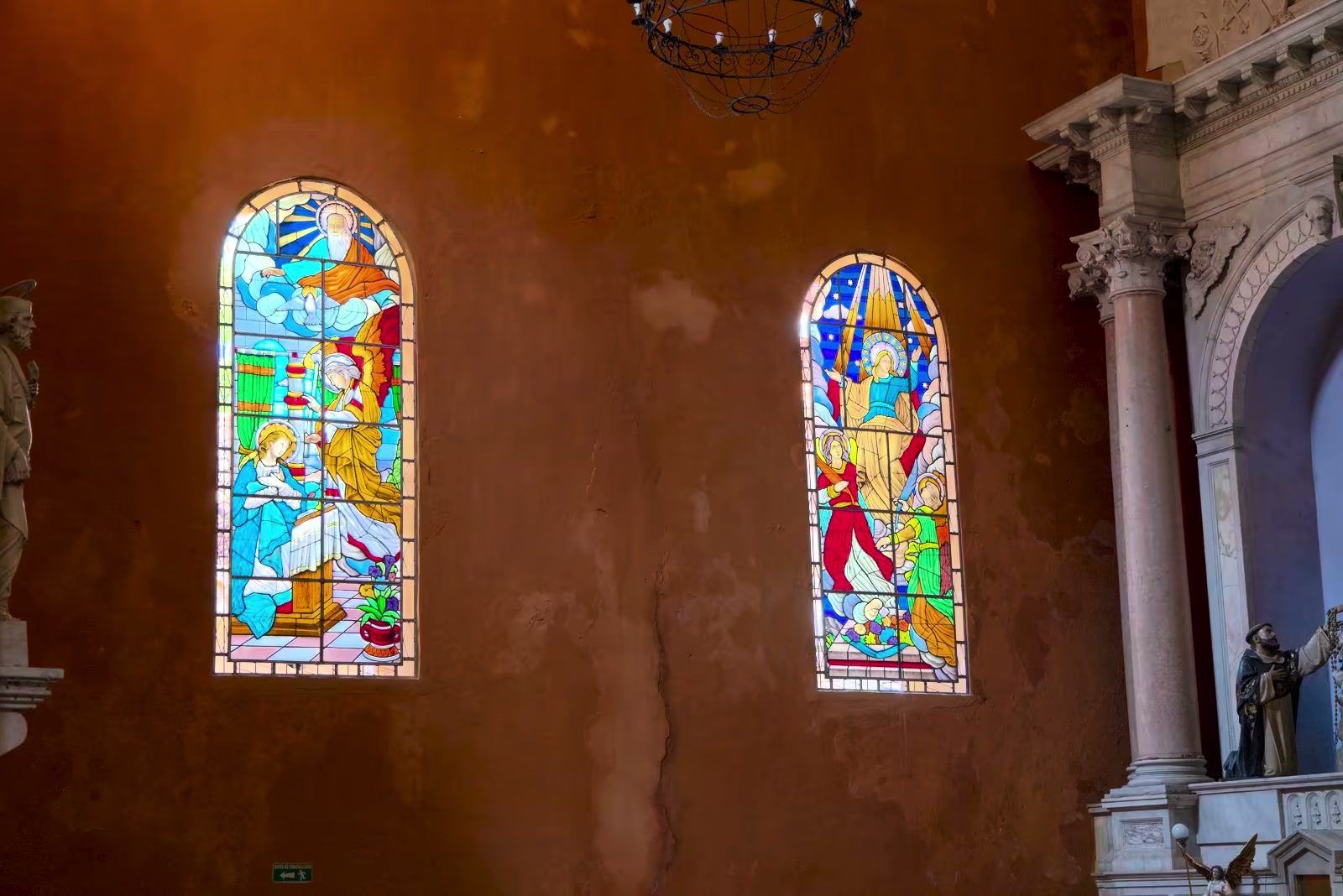
Drag across the photograph. On a supported HDR browser and display, the stained glass should emit visibly brighter, more detailed light.

Why LumaFrame
The last mile should not flatten the photograph.
LumaFrame began with a wish to be able to use the biggest and best display in the house to share photos with the family.
The photographs were carefully edited in Lightroom HDR. The television was the most capable HDR display in the house. Yet there was no satisfying way to bring those two together as a family slideshow with the 4K resolution and highlight range intact.
Adding finished photographs from a full-frame Canon, Nikon, Sony—or any dedicated camera—to Apple Photos is useful well before the television. It gives the family one familiar library across iPhone, iPad Pro, Mac, and XDR displays—Apple devices with excellent support for viewing HDR photographs.
The answer was not another photo library. It was a better last mile: let Apple Photos carry the finished photograph across those screens, then let LumaFrame request the current original-quality representation and prepare it for full-screen 4K HDR presentation on Apple TV.
The Lightroom & Apple ecosystem gap
What the documentation promises — and what the TV shows.
-
01
Lightroom can now export HDR.
Adobe documents HDR editing and output in Lightroom. HDR JPEG carries a gain map for adaptive display; AVIF is saved at 10-bit. Adobe export documentation
-
02
The Lightroom for Apple TV app falls short.
The Lightroom for Apple TV app always uses downsized Smart Previews, regardless of how the source entered Lightroom. Those previews are capped at 2,560 pixels on the long edge—about 2.5K, or 2,560 × 1,440 for a 16:9 image—and are interpolated on a 4K display and no HDR is supported. Adobe employee clarification
-
03
Apple Photos is a strong HDR home ... until the television.
Apple’s display stack provides HDR headroom across iPhone, iPad Pro, Mac, and XDR displays, making Apple Photos a great home for compatible Lightroom photo exports from professional cameras to sharing with family. On Apple TV, Apple promises full-resolution iCloud Photos and slideshows, but surprisingly there is no support for HDR viewing. Apple’s EDR overview· Apple TV Photos guide
-
04
LumaFrame’s 4K HDR path is explicit—and visible.
The app’s display policy targets a 3,840 × 2,160 canvas (4K), requests the current-quality native PhotoKit representation, and performs an HDR-aware ImageIO decode directly to the aspect-fit 4K size. On a physical Apple TV 4K and HDR television in HDR mode (e.g. Dolby Vision), that render is HDR and looks clearly different from SDR; forced SDR matches the flatter Apple Photos presentation, see for yourself!
Adobe’s current support pages are inconsistent about support for the Apple TV Lightroom app: the setup page describes a version 2.0 replacement, while the FAQ says Lightroom for Apple TV has not been in development since January 4, 2022. The same FAQ says the app uses sRGB. Adobe Lightroom for Apple TV FAQ
Workflow tips
From Lightroom to the living room.
Keep Apple Photos as the handoff point. LumaFrame reads the library already synced to your Apple TV; it adds no second cloud and no separate catalog.
-
1
Finish in HDR
Enable HDR Edit in Lightroom or Lightroom Classic and judge the highlights on an HDR-capable display.
-
2
Export the light
Enable HDR Output and keep large or original dimensions. HDR JPEG XL (JXL)gain maps offer an SDR fallback; 10-bit AVIF is compact but has narrower app support. Both work in Apple Photos.
-
3
Add to Apple Photos
Import the finished files on Mac or iPhone, place them in an album, and allow iCloud Photos to finish syncing to Apple TV.
-
4
Play in LumaFrame
Open that album and start the slideshow! LumaFrame uses the high-quality PhotoKit source, a bounded 4K HDR decode, and Apple’s native HDR-capable presentation path.
Before a large export: send one representative file through the full path and check LumaFrame’s diagnostics for format, bit depth, color space, HDR classification, and headroom. You can also checkout the "HDR Demo" section in the app for a live example.
Features
Made for the way photos live on Apple TV.
-
01
4K HDR presentation
Prepares compatible originals for a 3,840 × 2,160 canvas while preserving HDR headroom through Apple-native image APIs.
-
02
Your Apple Photos library
Browse Recents, Favorites, albums, folders, shared albums, photos, Live Photo stills, and videos.
-
03
A television-first viewer
Full-screen black presentation, reliable and fast Siri Remote navigation, and an uncluttered slideshow.
-
04
Evidence when you want it
Optional diagnostics show format, color space, pixel depth, HDR classification, and content headroom.
Your photos and videos stay between Apple Photos and your Apple TV. LumaFrame has no accounts, no analytics, no advertising, and no tracking.